
How to punch in and out
The screen you use twice a day, every day. The part worth reading properly is the question the app asks when you leave — Day End, Personal, or official work — because your answer decides whether that time counts as work on your own record.
The screen you will use twice a day, every day.
Starting the day
Open the app. The Punch tab shows a large button: Start the day.
Tap it. Depending on what your office has set, it will:
- Ask for your fingerprint
- Take a selfie
- Read your location
- Ask you to scan the QR code on the wall
Then it records the punch and the button changes to show you are in.
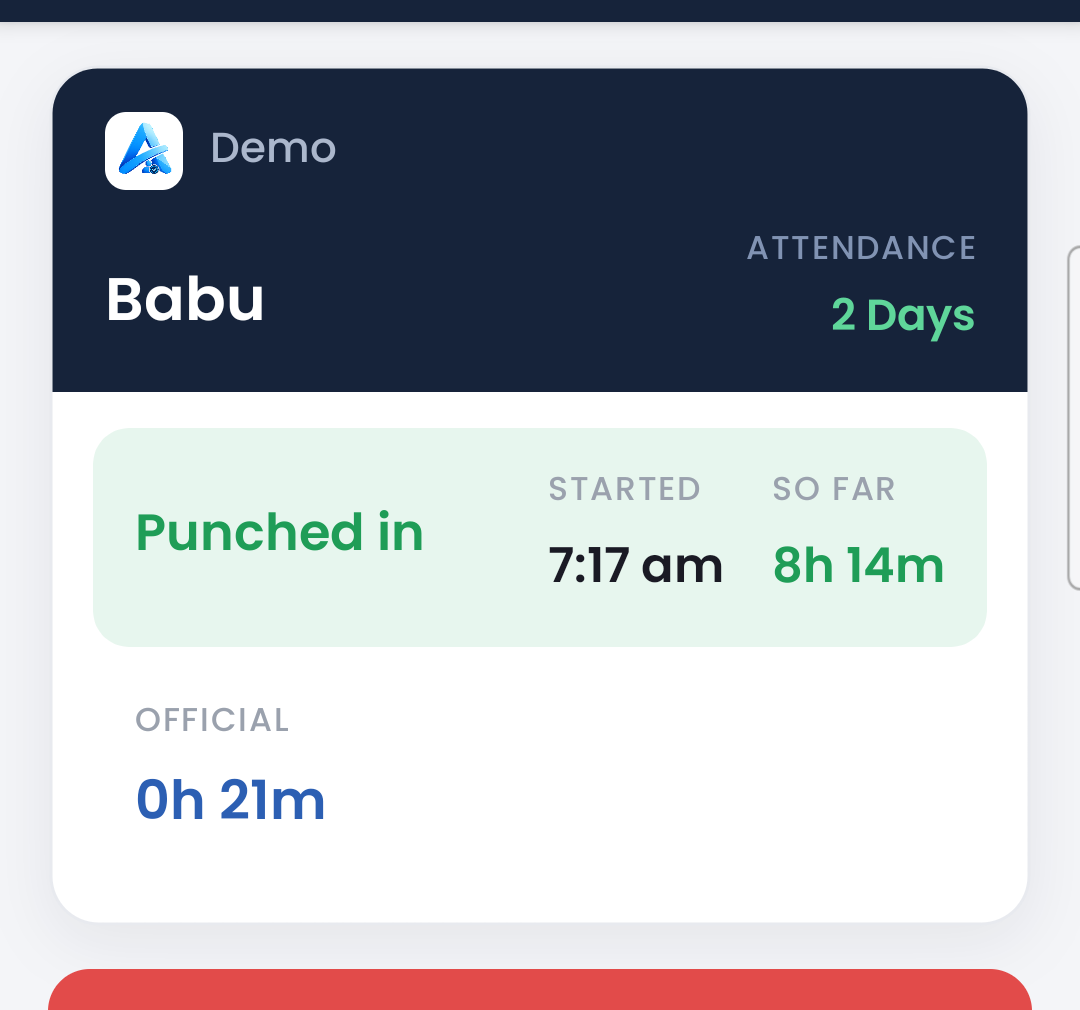
The card above the button shows the time you started and how long you have been at work, counting up through the day.
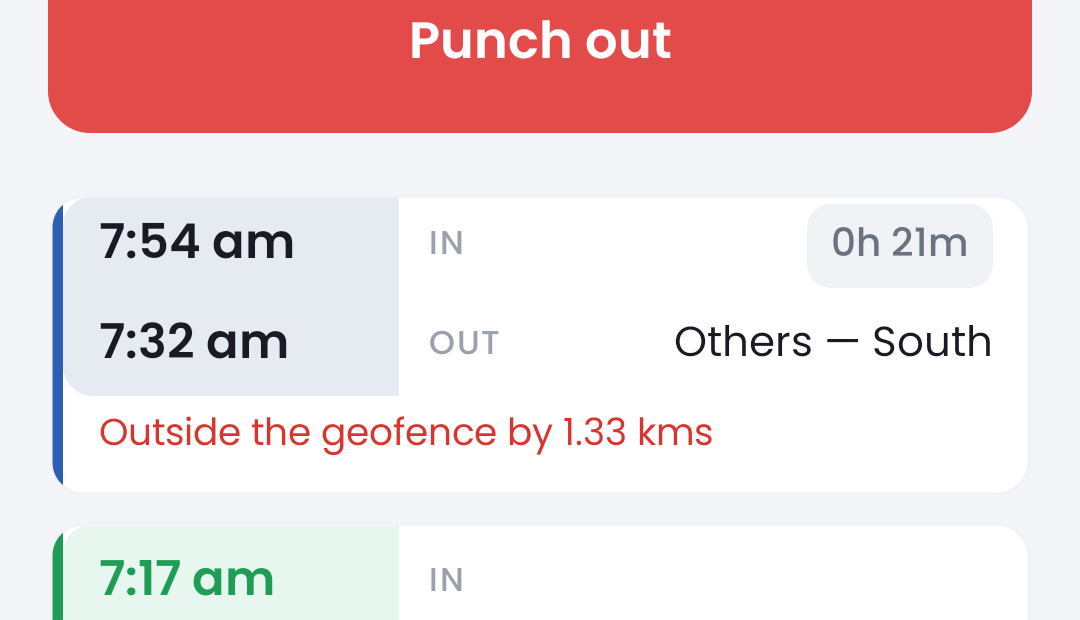
Below it, the day's punches build up as they happen — each one with its time, and a note where something about it was unusual.
Taking the selfie
- Hold the phone at arm's length, not close to your face
- Face a window or a light, not away from one
- Be alone in the frame — the app refuses a photo with two faces in it, and one with nobody
- Take off a helmet or a mask
It is not a portrait. It only has to look like you.
Finishing the day
Tap the button again. The app asks why you are going out, and this matters:
| Choose | When | Counts as work? |
|---|---|---|
| Day End | You are going home | The day closes |
| Personal | Your own errand — bank, doctor, lunch out | No |
| Official work (or the names your office uses) | Company business | Yes |
Choose honestly. Marking a site visit as Personal costs you those hours on your own attendance record; marking a personal errand as official is the sort of thing the office notices in a report.
If your office has named its official reasons — Bank, Customer site, Courier — pick the one that fits and add a note where asked.
Coming back
Punch again when you return. The app knows you were out and asks nothing more than the selfie and location.
If something goes wrong
No signal, or the location will not read. Move towards a window or outside. The app needs a location fix and will keep trying rather than punching without one.
The app says you are outside the office. Depending on your office's settings, the punch either stands and is flagged for somebody to look at, or is refused. If you are genuinely at work, tell the office — it is usually their map pin that is wrong, not you.
"You are too close to your registered home address to punch." This one only appears if you work in the field and your office has switched the rule on: the day has to be started once you have reached your work, not from the house. Walk or drive on and punch there. If your home genuinely is your place of work — a depot or a yard at the same address — tell the office; they can excuse you from the rule on your record alone. It never applies on a day approved as working from home.
You forgot to punch. See chapter 5: you can ask for a correction, and it goes to the office with your explanation.
Your phone is registered to you, the selfie is compared with your photograph, and every punch keeps its picture. Punching for a colleague is visible in the record and is not worth it for either of you.
Breaks
If your office has breaks switched on, the punch screen offers Start a break and End a break.
A break is time you are not working. Use it for lunch or a personal stop. If you are out on official work and stop for lunch, start a break then too — it keeps your official hours honest, and it takes two taps.
A break taken while you are out appears inside that outing on your day's card, in its own colour and in time order with the visits — so lunch at 12:04 sits under the customer you saw at 12:03, where it happened, rather than in a list of its own at the bottom.
Birthdays
On the day, the punch screen wishes you a happy birthday by name, and lists anybody else in the company whose birthday or work anniversary falls today or in the next week.
It is there so a colleague gets a word from you. Nobody's age is shown — only the day, never the year.
If your birthday is not there, your office has not filled the date in on your record. Ask them.
Part of the Attendance ATEASE staff guide. Last reviewed 4 October 2026.
Try it free for 30 days